 Cornetta
Record calls on your Mac.
In any app: WhatsApp, FaceTime, Meet, Zoom, Teams. Your voice and theirs in one file. Free, no account.
Works with calls in
- FaceTime
- Google Meet
- Zoom
- Microsoft Teams
- Slack
- Discord
- Telegram
- your browser
One click to record.
Nothing to think about.
Cornetta lives in the menu bar. No audio settings to change, no drivers to install, no devices to pick.
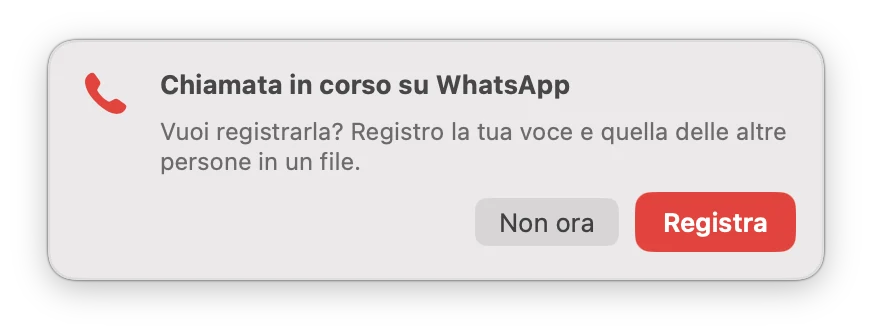
It tells you when a call starts
As soon as an app starts using the microphone, Cornetta notices and asks whether to record. One click and it starts.
When the call ends, it lets you know, so you never record silence.
You always know it is recording
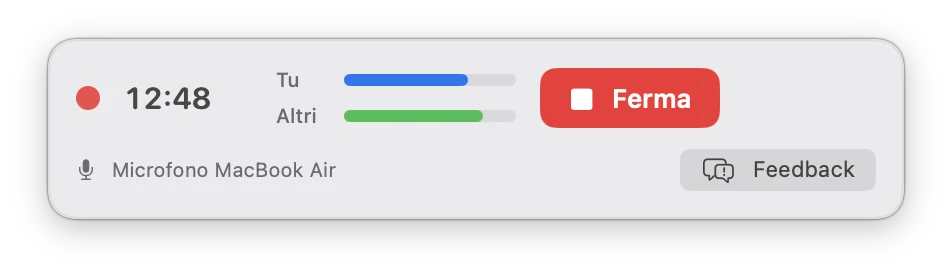
During the call a small panel stays in the top right corner, above every window.
- How long you have been recording
- The levels of your voice and theirs
- The Stop button, always within reach
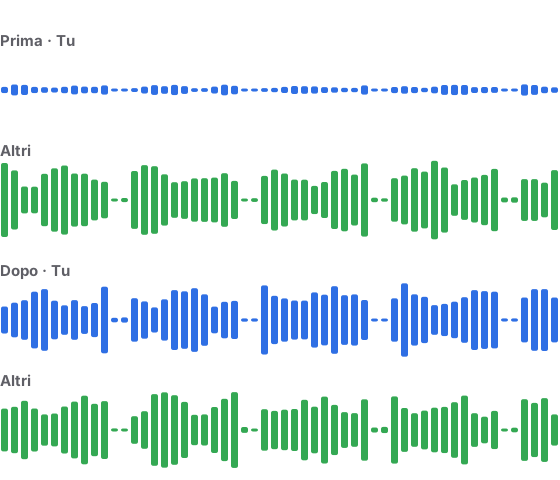
Your voice is as loud as theirs
During a call the Mac hands the microphone to the calling app and leaves recorders a weak signal. Cornetta raises it by up to 24 dB, so your voice matches the person on the other end.
While the other person talks, Cornetta stops boosting the microphone, so speaker echo never doubles their voice.
It updates itself
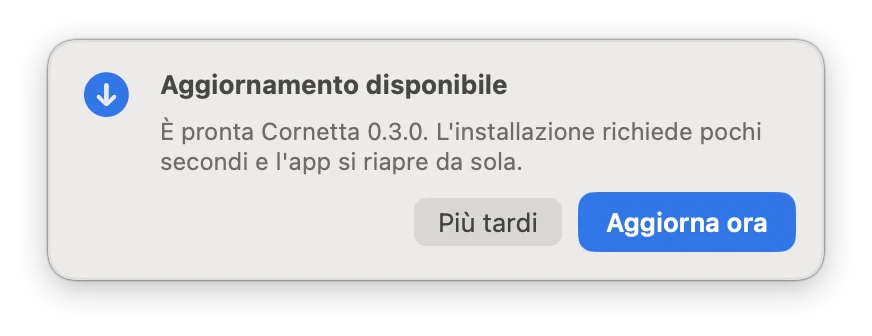
When a new version is out, Cornetta shows a clear notice. Click Update now: a few seconds later it reopens, updated, with the permissions you already granted.
While you record, the notice waits: no interruptions in the middle of a call.
Made for the Mac. Nothing else.
-
One file, ready to use
Every call becomes an .m4a in Music › Cornetta, named with date and time. Ready to play, archive or transcribe.
-
It stays on your Mac
Recordings never leave your computer. No cloud, no account, no data collected.
-
No audio driver
It uses the macOS feature for recording system audio. No BlackHole, no changing your audio output.
-
Actually free
No subscription, no Pro tier, no ads.
-
Apple Silicon and Intel
One app for every Mac running macOS 14.4 or later.
-
One-click feedback
Something wrong? The Feedback button sends your message straight to the developer.
Install it in two minutes.
You do it once. Updates arrive on their own.
-
Download and drag
Download Cornetta, open the file from your Downloads folder and drag the icon into Applications.
-
Allow the first launch
macOS blocks free apps that do not come from the App Store. Click Done, then open System Settings › Privacy & Security and click Open Anyway.
-
Grant two permissions
On the first recording Cornetta asks for the Microphone, for your voice, and System Audio Recording, for the others. Click Allow for both.
If you open Cornetta straight from the disk image, it offers to move itself to Applications: accept. From there it updates itself and macOS remembers the permissions.
Questions
Is Cornetta free?
Yes. Free, with no account, no subscription and no ads.
Which apps does it work with?
Any app that uses the Mac's microphone and audio: WhatsApp, FaceTime, Google Meet, Zoom, Microsoft Teams, Slack, Discord, Telegram, Skype and calls in the browser.
Is it legal to record a call?
It depends on where you live. In Italy and other one-party-consent places you may record a conversation you take part in for personal use; sharing it without consent is not allowed.
Other countries and some US states require everyone's consent. Check your local law before recording.
Do I need BlackHole or another audio driver?
No. Cornetta uses the macOS feature that records system audio (Core Audio process taps, macOS 14.2 and later). It installs no driver and does not change your audio settings.
Where are the recordings saved?
In Music › Cornetta, as .m4a files (AAC, 48 kHz, stereo) named with date and time. They stay on your Mac: Cornetta never uploads them.
Does it work with AirPods?
Yes. During calls, though, macOS switches to the Bluetooth voice profile, which sounds worse: that applies to every recorder. If you can, use the Mac's microphone.
Does it work on iPhone or Android?
No. iOS gives no app access to call audio, and Android blocks it for regular apps since Android 10. Cornetta runs on your computer.
What about Windows?
The Windows version is in development. This page will offer it as soon as it is ready.
Yes: download Cornetta for Windows. On first launch Windows may show a warning: click More info and then Run anyway.
Why does macOS say it cannot verify the developer?
Cornetta is free and not distributed through the App Store, so macOS blocks it the first time. Open System Settings › Privacy & Security and click Open Anyway. You only do this once.
How do I check the download is genuine?
Every version is signed, and updates are verified with an EdDSA signature before installing. The SHA-256 fingerprint of the current disk image is:
listed in /downloads/latest.json